How To Configure And Manage IP Cameras With UniCam
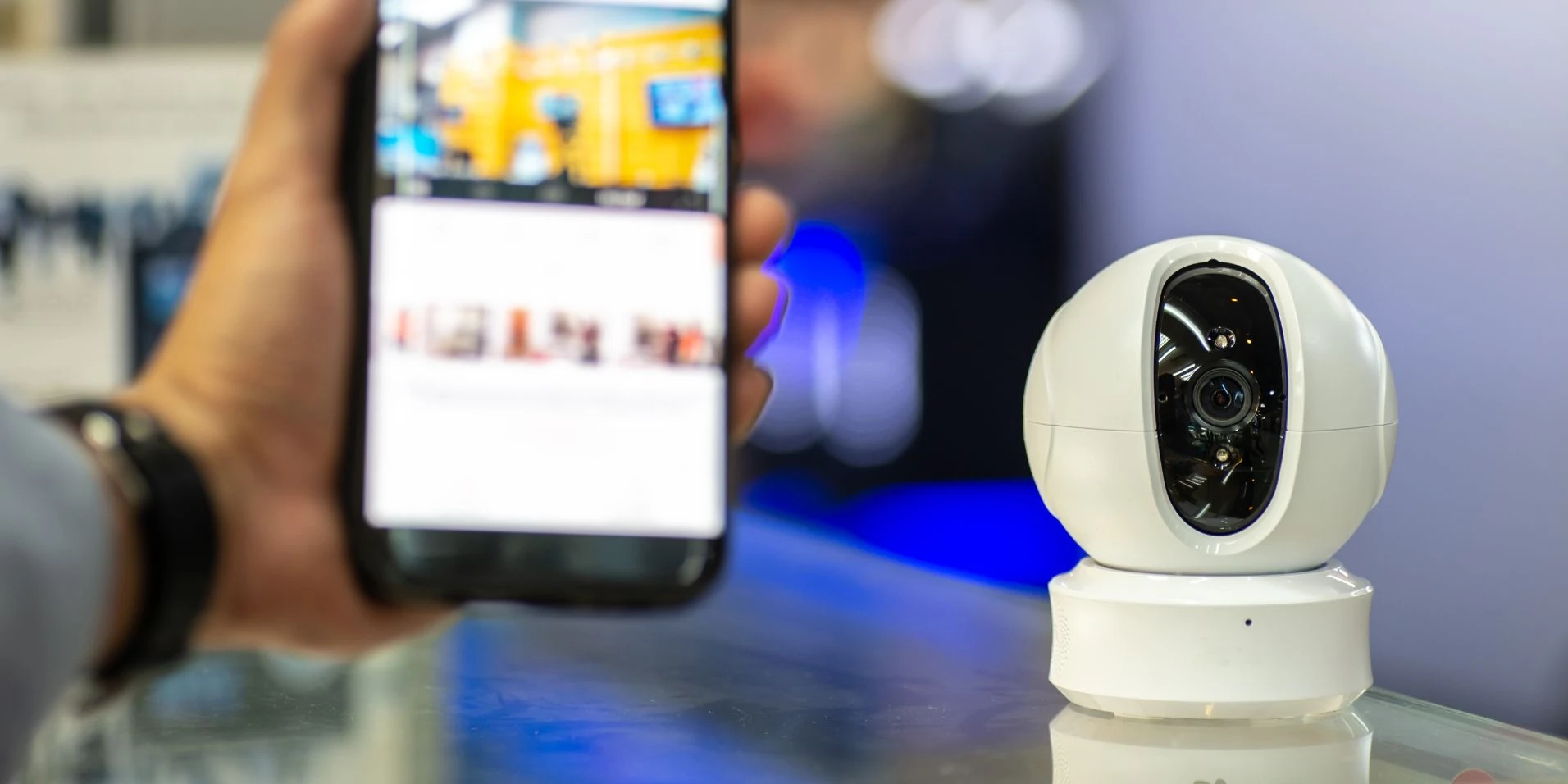
IP cameras have become an essential tool for security and surveillance — both in households and in business environments.
They offer high-quality video and audio monitoring, but to truly harness their full potential, proper configuration and management are key.
That’s where UniCam comes in — a powerful, cross-platform application that allows you to easily set up, configure, and monitor your IP cameras.
In this guide, we’ll explore how to correctly configure and manage IP cameras using the UniCam app.
1. Download and Install UniCam
Before configuring or managing your cameras, first download and install the UniCam app on your device.
UniCam is available on:
- iOS and iOSTV
- Android and AndroidTV
This wide compatibility means you can monitor and manage your IP cameras from virtually any device — whether it’s a smartphone, tablet, or Smart TV.
2. Add Cameras to UniCam
After installing the app, the first step is to add your IP cameras.
This is essential for accessing and managing them through UniCam.
The application supports multiple camera formats, including:
- ONVIF
- RTSP
- MJPEG
- HLS
This flexibility ensures compatibility with a wide range of devices, from home security cameras to professional surveillance systems.
3. Configure Camera Settings
Once your cameras are added, it’s time to configure their settings for optimal performance.
This includes:
- Adjusting network parameters such as IP addresses and ports
- Setting usernames and passwords to secure access
- Fine-tuning resolution, bitrate, or stream quality (depending on camera capabilities)
UniCam offers an intuitive interface that makes configuration easy — even for users who aren’t tech experts.
4. Customize Schedules and Functionality
With UniCam, you can customize monitoring schedules and tailor camera functionality to fit your needs.
Create schedules to monitor specific cameras at certain times or control several cameras simultaneously.
For cameras with movable mechanisms, UniCam supports PTZ (Pan-Tilt-Zoom) control, allowing you to:
- Change perspectives
- Zoom in on details
- Focus on key areas of interest
This flexibility provides full control and situational awareness at all times.
5. Monitor Live and Access Archives
Once everything is configured, you can start live monitoring directly from the app.
UniCam lets you:
- Stream real-time video and audio
- Access recorded events and archives
- Revisit important footage anytime you need
Whether you’re away from home or managing multiple locations, UniCam keeps you connected and informed.
6. Convenient Management via Smart TV
For even greater comfort, install UniCam on your Smart TV.
This setup allows you to monitor your cameras on a large screen — perfect for security control rooms, offices, or simply from your living room couch.
No extra hardware or cables required — just launch UniCam and access all your cameras instantly.
Conclusion
UniCam is a versatile, user-friendly, and secure solution that gives you complete control over your IP cameras.
Whether for home security or business surveillance, it provides a seamless way to configure, manage, and monitor all your devices.
With UniCam, managing IP cameras has never been easier, faster, or more convenient.